RenkeiBook a Demo

One warehouse.
A thousand moving parts.
Everything connected.

From the first scan at receiving to the final check at dispatch, Renkei connects your stock, locations, handling units and people in one warehouse workflow.

01ReceiveVerify incoming stock
02Put AwayFind the right destination
03Store & MoveKeep inventory visible
04Pick & PackPrepare every order
05DispatchVerify the handoff
Throughout the cycleReplenishmentCountingTasks & Exceptions

A clear path from the dock
to the right location.

Capture what arrived, identify how it is handled and guide it into storage.

01

Receive with context

Start from a purchase order, container or ASN. Select the receiving dock, scan items and verify quantities against the expected receipt.

  • Barcode identification across item and unit-of-measure references
  • Receipt discrepancies captured for review
  • Loose stock, identical HUs and mixed HUs
02

Identify what you handle

Receive cartons and pallets as handling units. Use labels and SSCC identifiers to follow the same unit through warehouse movements.

  • Normal and pallet handling units
  • Easy-to-use label templates and design, with preview and printing for items, cartons and pallets
  • Loose stock can move without an HU
03

Put stock where it belongs

Suggest destinations using zone assignments, existing stock and available capacity. Direct a portion to fast pick and the remainder to bulk storage.

  • Item and item-group zone policies
  • Location-directed tasks with destination verification
  • Keep pallets intact until the operation calls for opening them
Receipt → Put AwaySample workflow
PURCHASE ORDER / 10842

Oil filters · OF-104

120 pcs received at Dock D01

✓ Item & quantity verified
HANDLING UNITHU-000184
TYPEPallet
Suggested destinations
24pcs
Fast Pick · A01–014–02

Replenish the picking location

20%
96pcs
Bulk · B02–006–01

Store the remaining quantity

80%
Opening the pallet is an explicit step.

Separate cartons become new HUs when opened and moved independently. Loose pieces are tracked as stock at their location.

Illustrative strategy · sample quantities and destinations

One receipt can serve different storage needs.

Divide incoming stock between zone types using configurable strategies. Bring stock to the pick face while placing the balance in bulk or pallet storage.

Assign the right zone types

Use item and item-group assignments for normal, fast-pick, bulk and pallet zones.

Define the allocation

Split quantities between zones and account for fast-pick minimum and maximum stock requirements.

Choose a suitable location

Consider existing stock, available capacity and location permissions within the destination zone.

Respect the handling unit

Keep the pallet intact when appropriate. Open it explicitly when cartons or loose stock need to move separately.

Know your stock.
Trust your next move.

See what is available, follow every transfer and keep stock ready for the next operation.

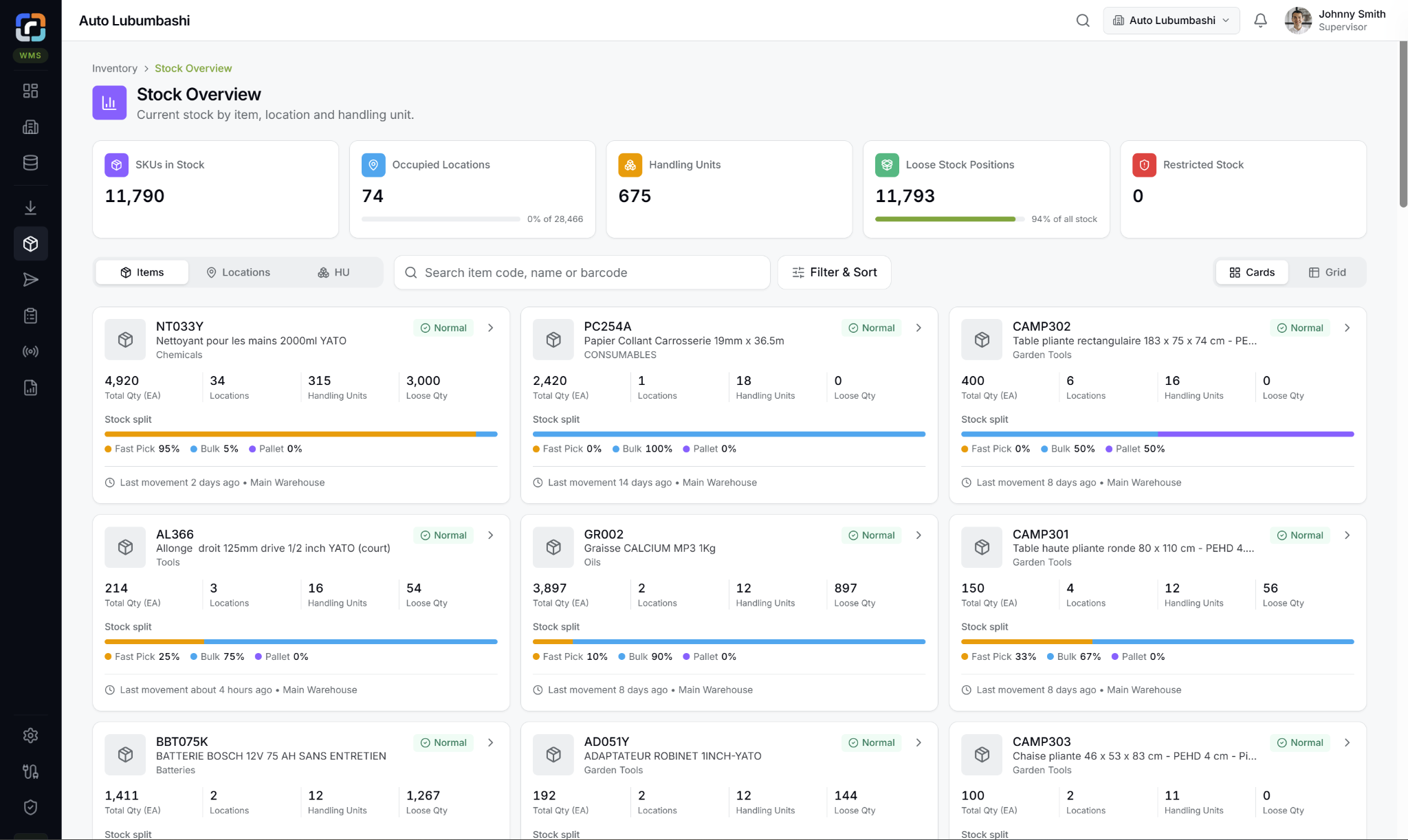
01 / STOCK OVERVIEW

From an item to its exact location.

Explore inventory by item, location and handling unit. Bring stock balances together with movement history and useful inventory insights.

  • Warehouse, zone and location views
  • Available stock and allocated quantities
  • Turnover, consumption and slow-moving stock
Renkei Stock Overview with item cards, quantities, occupied locations, handling units, loose stock and fast-pick, bulk and pallet zone splits
Stock Overview in Renkei
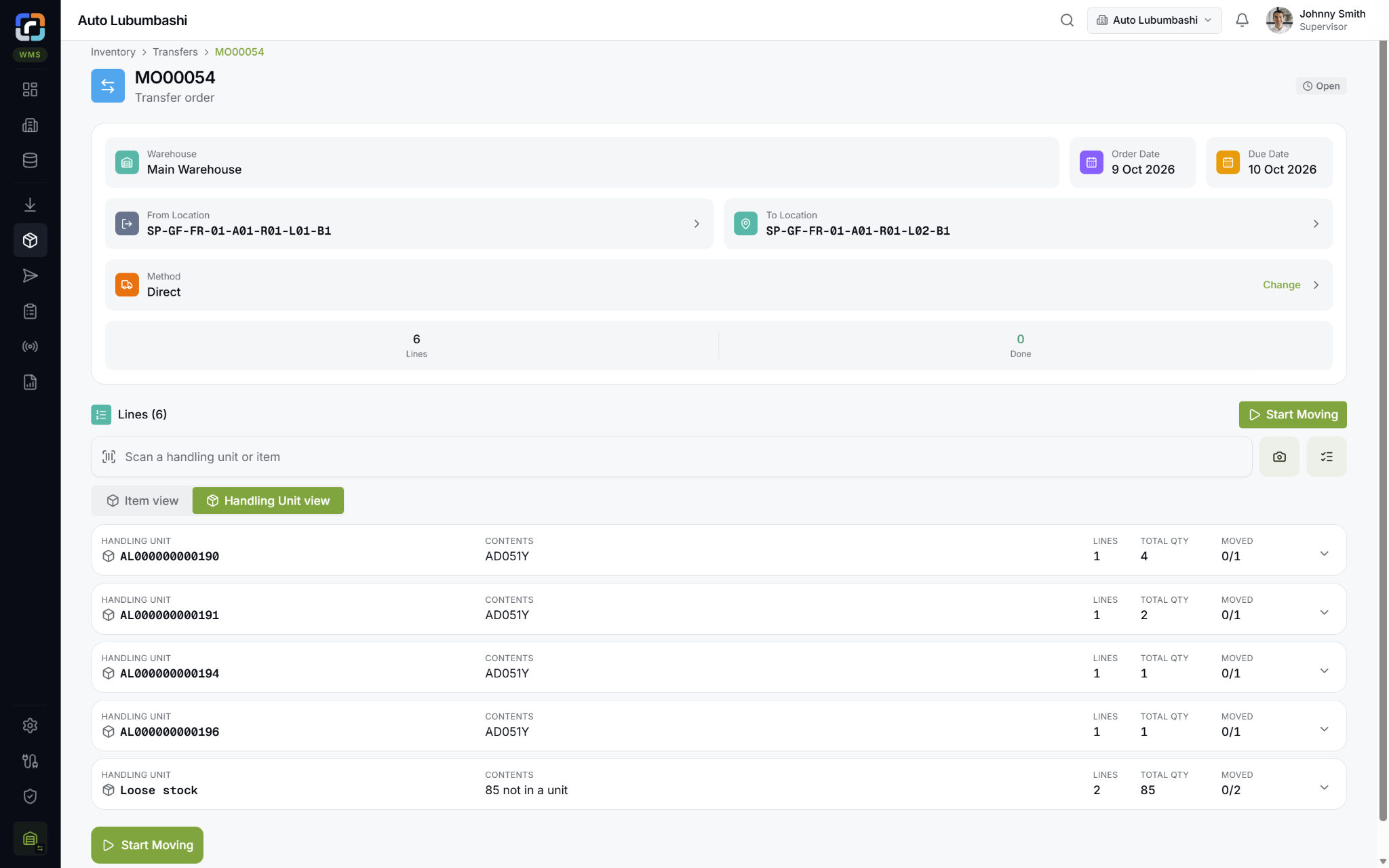
02 / TRANSFERS

Every move keeps its context.

Transfer stock between locations while retaining item, quantity and handling unit references. Follow both loose stock and complete handling units as they move.

  • Source and destination location checks
  • Loose stock and handling unit movements
  • Traceable movement history
Renkei transfer order showing source and destination locations, handling units, loose stock, quantities and movement progress
Stock transfers in Renkei
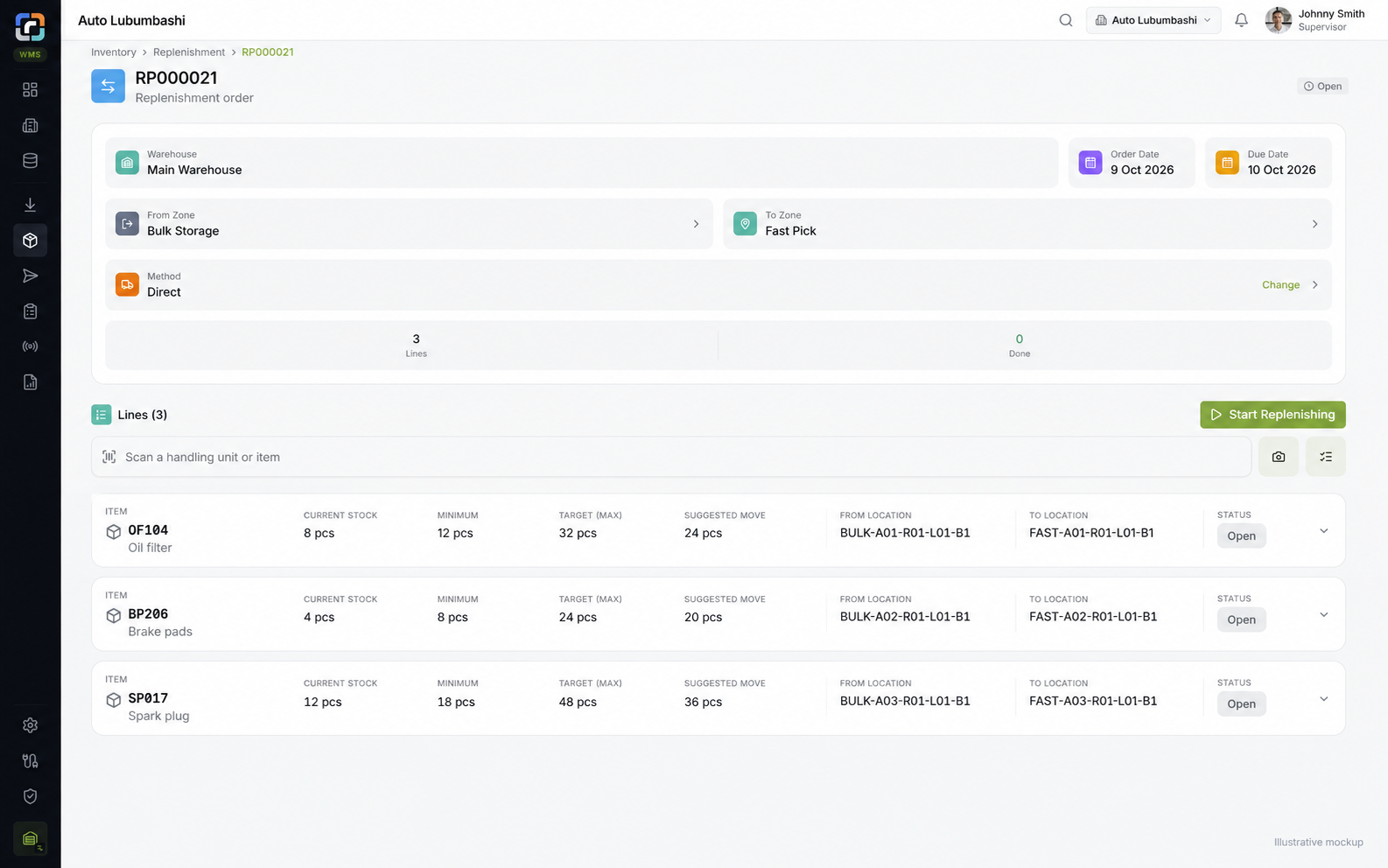
03 / REPLENISHMENT

Keep the pick face supplied.

Move stock from bulk storage into fast-pick locations using configured replenishment policies. Give operators a clear source, destination and quantity.

  • Fast-pick and bulk zone policies
  • Minimum and maximum stock quantities
  • Guided replenishment tasks
Illustrative Renkei replenishment mockup showing bulk-to-fast-pick moves, current stock, minimum and target quantities, source and destination locations
Replenishment · illustrative mockup
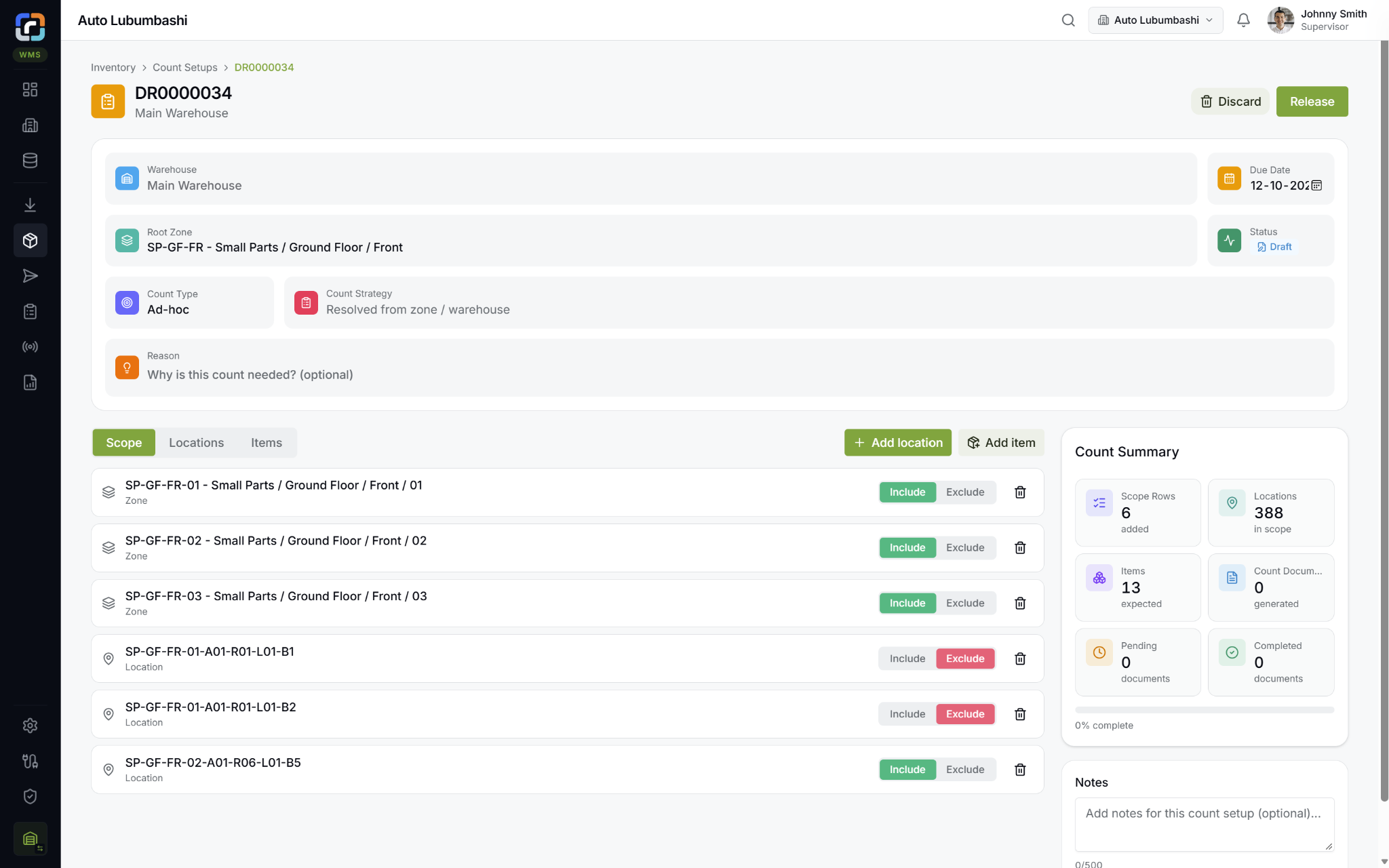
04 / STOCK COUNTING

Find differences before they grow.

Plan count sessions, identify stock with scans and review differences before inventory reconciliation. Make the physical count and the follow-up visible to supervisors.

  • Count sessions by warehouse area
  • Item, location and handling unit identification
  • Variance review and discrepancy follow-up
Renkei stock count setup showing warehouse, zone, count strategy, scope inclusions and exclusions, and count summary
Stock count setup in Renkei
Scroll to explore each inventory capability01 / 04
ItemWhat is it?
LocationWhere is it?
Handling UnitHow is it held?
Movement HistoryHow did it get here?

Traceability at warehouse level.
Even when ERP does not track it.

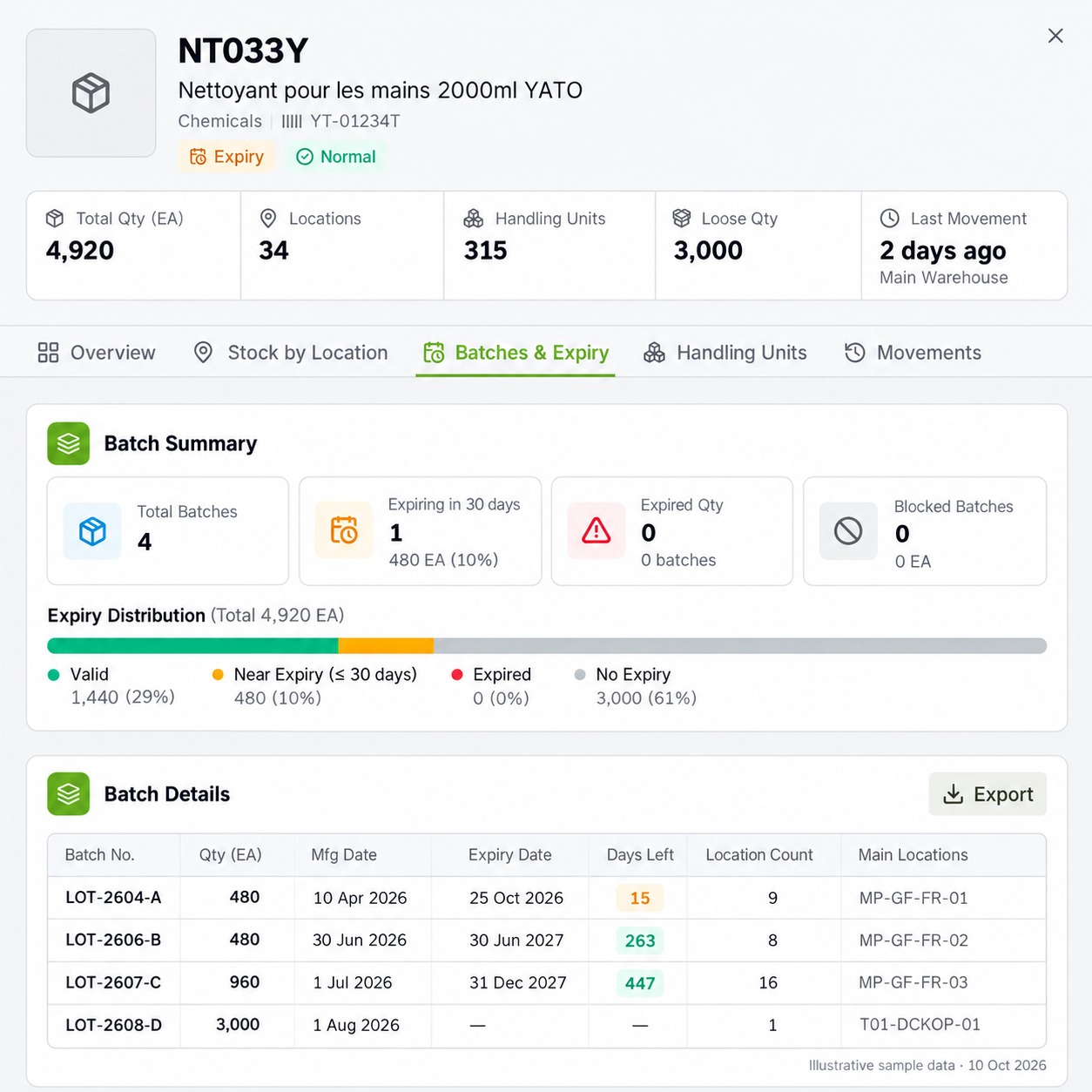
Manage batch and serial identifiers in Renkei even when the item is not batch- or serial-managed in your ERP.

Batch Number Tracking

Identify stock belonging to a batch and follow it through receipt, storage and outbound operations. Know which batch is held in each location or handling unit.

Serial Number Tracking

Identify individual units by serial number and retain their warehouse movement history. Track the specific unit received, stored, moved and dispatched.

Expiry Date Tracking

Record expiry dates against tracked stock. Make remaining shelf life visible so teams can identify stock approaching expiry and account for it in picking decisions.

WMS tracking is independent of ERP item settings.

An item can remain untracked in ERP while Renkei maintains the warehouse batch or serial detail.

Illustrative Renkei Batches and Expiry panel with named batches, expiry distribution, near-expiry stock, quantities and locations
Batches & Expiry · illustrative sample data

Keep every order moving.
Check every handoff.

Connect the pick, pack and dispatch steps so operators work with the same order context.

Decide what to pick before work reaches the floor.

Use configured pick strategies to determine which stock and locations should supply an order. Review the resulting pick proposal before moving into picking execution.

Pick Strategies

Apply stock-selection and location priorities consistently. Bring batch, serial and expiry information into the decision where relevant.

Pick Proposal

See proposed items, quantities and source locations together. Review availability and shortages before proceeding with warehouse tasks.

01 / PICKINGPick the right stock.
Renkei mobile picking screen showing next item, source and target locations, scan location and scan item checks, and shortage action
Picking in Renkei

Guide the operator.

Direct picking by location and verify items and quantities with barcode scans.

  • Clear task and order references
  • Progress visible to supervisors
  • Shortages recorded as exceptions
02 / PACKINGVerify before you close.
Renkei mobile packing screen showing packing progress, pallet handling unit contents, and close HU and print label action
Packing in Renkei

Prepare the shipment.

Bring picked stock together, confirm the contents and identify cartons or pallets for the next handoff.

  • Packed quantity verification
  • Carton and pallet identifiers
  • Label preview and printing workflows
03 / DISPATCHClose the warehouse loop.
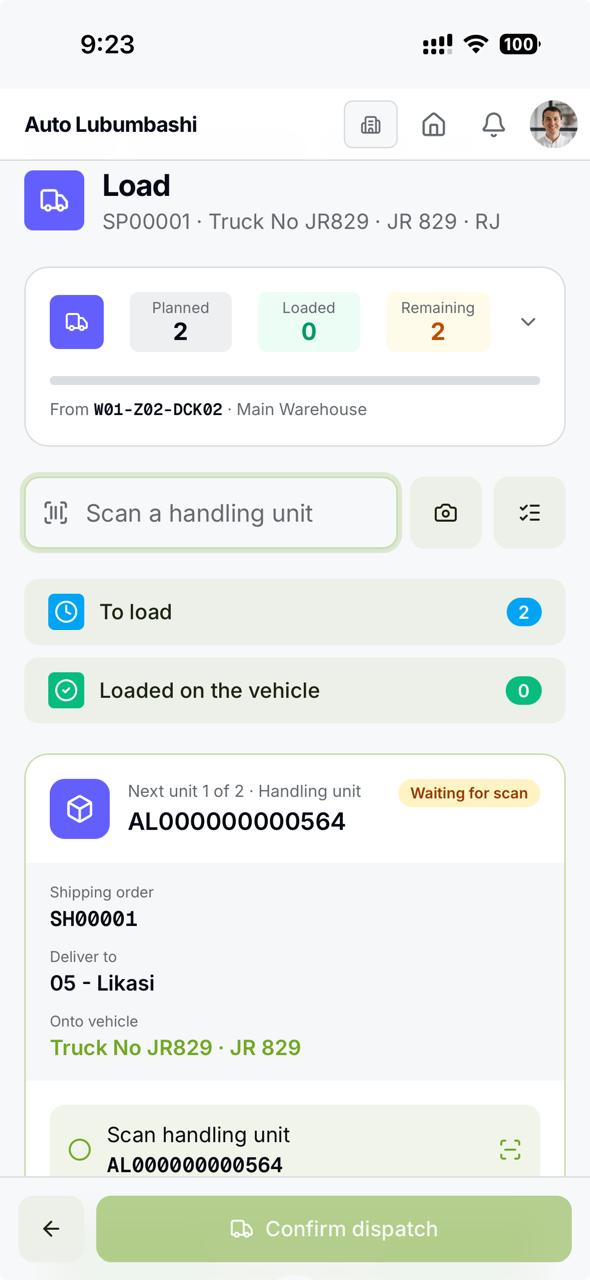
Renkei mobile dispatch loading screen showing planned and loaded units, shipping order, vehicle, handling unit scanning and confirm dispatch
Dispatch loading in Renkei

Confirm what leaves.

Scan outgoing handling units at the dispatch dock and keep the warehouse handoff tied to its order.

  • Dock-based dispatch checks
  • Outgoing handling unit verification
  • Connected document references
Actual Renkei mobile screens · Picking, Packing and Dispatch

Outbound starts with a requirement.
Dispatch completes the plan.

Keep the shipping requirement, execution plan and final warehouse handoff connected.

01 / SHIPPING ORDER

Define what must ship.

Establish the outbound requirement: the items, quantities and order context that the warehouse must fulfill.

The requirement
02 / PLAN

Prepare warehouse execution.

Turn the shipping requirement into planned warehouse work. Bring stock selection, picking and packing preparation into the same outbound context.

The work to carry out
03 / DISPATCH

Confirm what leaves.

Verify the prepared stock or handling units at the dock and record the final dispatch against the planned shipment.

The completed handoff
Pick proposals support preparation. Scanning checks support execution. Dispatch closes the warehouse handoff.

The floor keeps moving.
You keep the overview.

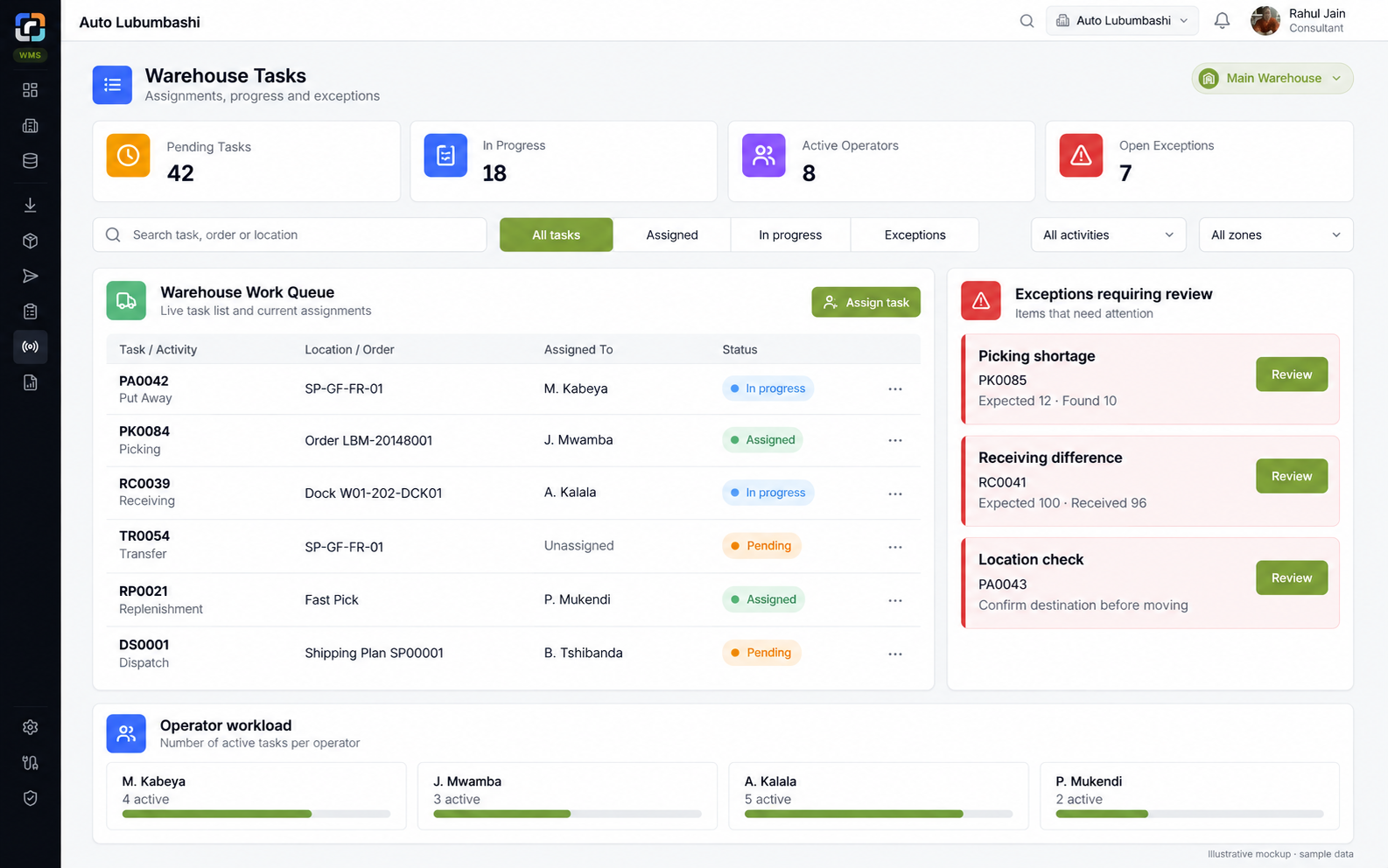
Give each operator a clear task and supervisors a shared view of progress, workload and exceptions.

Assign work with context

Connect tasks to locations, zones and warehouse activities so operators know what to do and where to go.

Follow progress across the warehouse

See pending, active and overdue work across receiving, put away, picking and dispatch.

Bring exceptions into view

Review receipt discrepancies, stock shortages and location issues where they interrupt the workflow.

Connect operators and supervisors

Mobile execution and desktop oversight share the same operational context.

Illustrative Renkei warehouse task screen with operator assignments, progress, exceptions and workload; sample data
Operational Control · illustrative mockup with sample data

Your warehouse has its own logic.
Renkei gives it a structure.

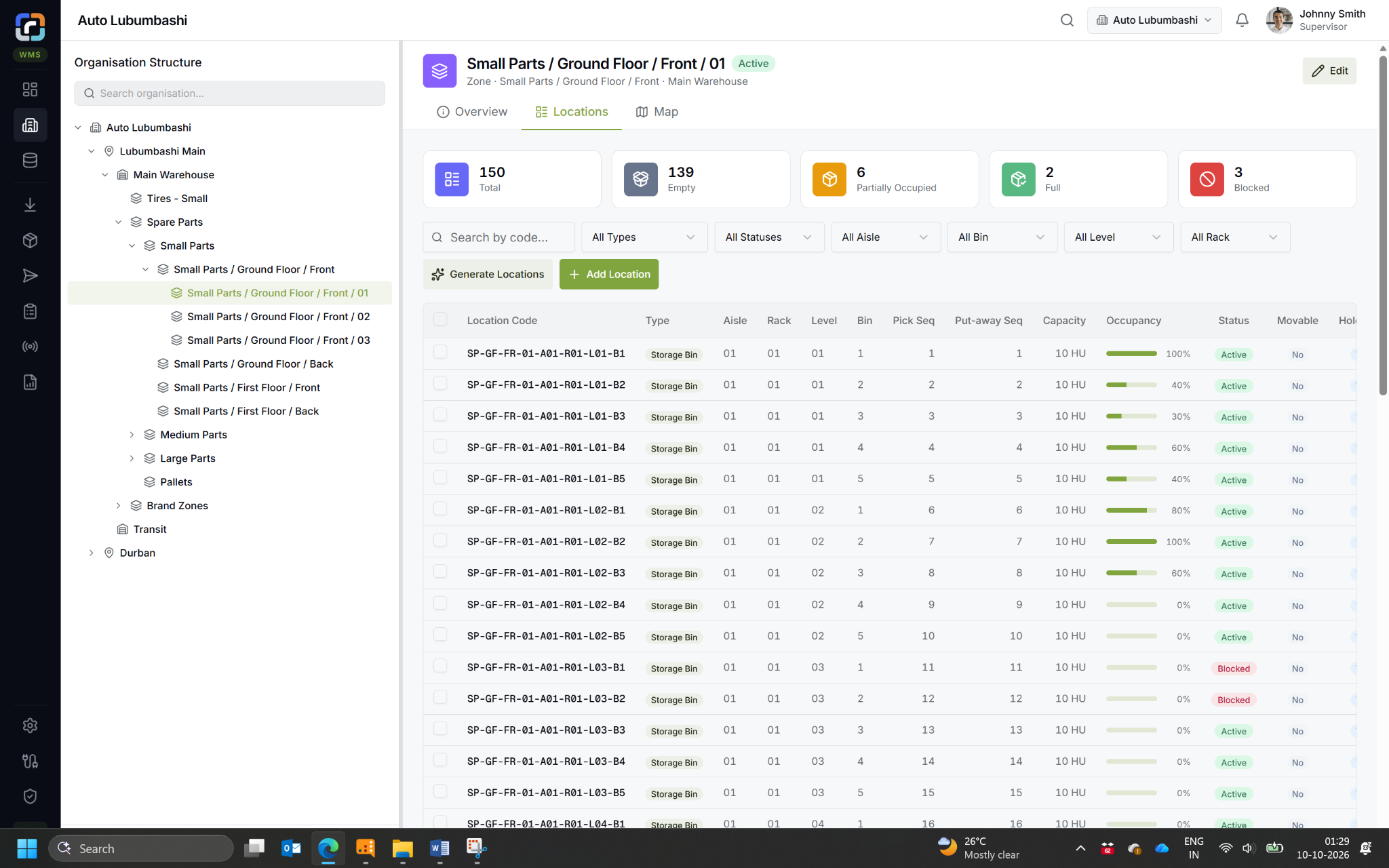
Model your physical operation from site to bin, with policies that reflect how different stock is stored and moved.

Renkei organisation hierarchy and zone locations showing capacity, occupancy, pick sequence and put-away sequence
Warehouse structure and locations in Renkei

Zones with a purpose

Separate fast-pick, bulk, pallet and quarantine areas. Apply item or item-group zone assignments to guide allocation.

Locations with rules

Configure put-away triggers, verification and operational permissions. Use location generation to create consistent aisle, rack, level and bin codes.

Movable storage

Represent carts and tire racks as movable locations linked to their current physical position.

ERP-connected warehouses

Map warehouses to your ERP while organizing the zones and locations needed for warehouse execution.

Warehouse execution.
Connected business context.

Renkei brings warehouse-focused workflows to the floor, connected with SAP Business One inventory and business documents.

Explore Integrations

ERP inventory & business documents

CONNECTED OPERATIONS
Renkei

Locations, handling units & warehouse execution

Warehouse execution for
a large automotive parts business.

Auto Lubumbashi is the first customer implementation for Renkei WMS. Its operation provides a concrete setting for the warehouse workflows described on this page.

BUSINESSAutomotive parts distributor
PRODUCT RANGEAround 65,000 SKUs
ERP CONTEXTSAP Business One, 10+ years
OPERATING LOCATIONSLubumbashi, Likasi & Kolwezi

The operating challenge

A wide spare-parts range, a Lubumbashi depot and stores across three cities create a need for detailed warehouse control. Stock must be identifiable by location and handled appropriately as loose pieces, cartons or pallets.

The warehouse design includes spare-parts storage and a separate tire operation, with different storage and handling requirements.

The implementation focus

  • Receiving & put away: verify incoming stock and direct it to suitable storage zones.
  • Stock & locations: follow items, handling units and internal warehouse movements.
  • Storage strategies: allocate stock between fast-pick, bulk and pallet areas.
  • Outbound execution: connect picking, packing and dispatch with warehouse tasks and checks.

Explore the workflows behind the implementation.Read the Full Implementation Profile

Walk through the warehouse processes and discuss how they apply to your own operation.

Book a Warehouse Demo

Your warehouse questions.
Practical answers.

Explore stock control, storage policies and the work involved in bringing Renkei to your warehouse.

Stock & storage

Can Renkei track batches and serial numbers independently of ERP settings?

Yes. Renkei can track batch and serial numbers at warehouse level even when the ERP item is not batch- or serial-managed. That additional warehouse detail is maintained in Renkei, without requiring the same tracking settings on the ERP item.

Does Renkei track expiry dates?

Yes. Renkei supports expiry date tracking alongside warehouse batch information. Teams can review the shelf-life context of stock when deciding what to store, move or prepare for an order.

Can put away divide a receipt between fast-pick and bulk storage?

Yes. Put-away strategies can direct portions of a receipt to different zone types, using item or item-group zone assignments, existing stock and available capacity. This lets fast-pick, bulk and pallet storage follow different operational requirements.

Can we handle loose stock, cartons and whole pallets?

Yes. Renkei supports loose stock as well as normal and pallet handling units. Keep a pallet intact until it is opened, then handle separated cartons independently. Loose pieces can move without creating a handling unit just to give them a label.

How does Renkei support internal transfers, replenishment and stock counting?

Renkei provides workflows to move stock between locations, replenish picking areas and plan stock counts. These activities keep their item, location and handling-unit context, so warehouse teams can follow the work alongside receiving and outbound execution.

Execution & setup

How do pick strategies and pick proposals help prepare an order?

Pick strategies guide stock selection, while a pick proposal brings the planned items, quantities and warehouse context into view before work reaches the floor. Operators then carry out picking, packing and dispatch with scanning checks at the relevant handoffs.

Which warehouse activities can operators carry out on mobile?

Mobile workflows cover receiving, put away, stock movements, picking, packing and dispatch. Operators scan items, locations and handling units as they work. Supervisors use desktop views to follow stock, assignments, progress and exceptions.

Can we create and adjust our own label templates?

Yes. Renkei includes an easy-to-use label template and design facility for items, cartons and pallets. Teams can create or adjust templates, preview the result and print labels as part of warehouse workflows.

Can Renkei work with our existing warehouse structure?

Yes. Renkei lets you model your sites, warehouses, zones and locations, with rules that reflect how you store and move stock. You can configure storage areas and operational workflows around your existing setup, from a straightforward layout to a warehouse with several different storage zones.

What is involved in implementing Renkei?

Implementation starts with your warehouse workflows and SAP Business One context. We review the location structure, item and barcode data, storage and picking policies, devices and labels. Configuration, integration and operator training are then planned around the agreed operating scope.

Walk through your
warehouse with Renkei.

Explore receiving, storage and fulfillment in one connected demonstration.